How To: Setting Up Nagios User for ESXi
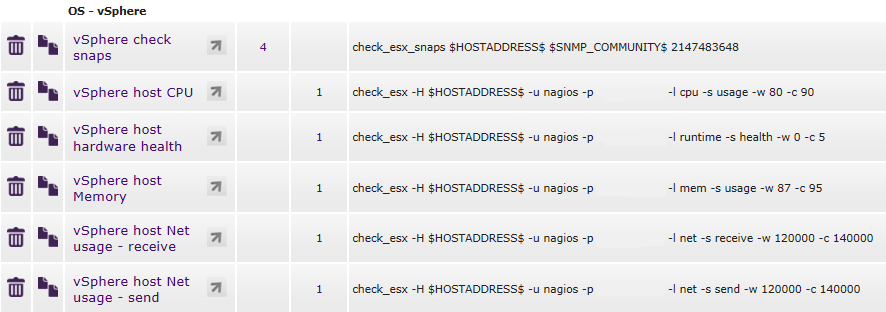
Unless my Google skills are seriously on the decline I wasn’t able to find a definitive post on correctly setting up a nagios user to facilitate esx_checks for monitoring systems such as OpsView and similar Nagios based systems. For our ESXi monitoring we have chosen to use the OS - vSphere Service Checks. Post (http://www.opsview.com/forum/opsview-community-edition/how-do-i/how-monitor-esx-vsphere-4-hosts) on how to get the OpsView side going. Having a look at the checks in OpsView you see the following checks are used
Our current ESXi 4.1 hosts where working a treat, and this being my first time adding new hosts to the monitoring set, I was confronted with the following errors via Nagstamon:

So, to get the reporting up the following actions need to be taken on the ESXi host.
- Log into the host directly with the VI Client
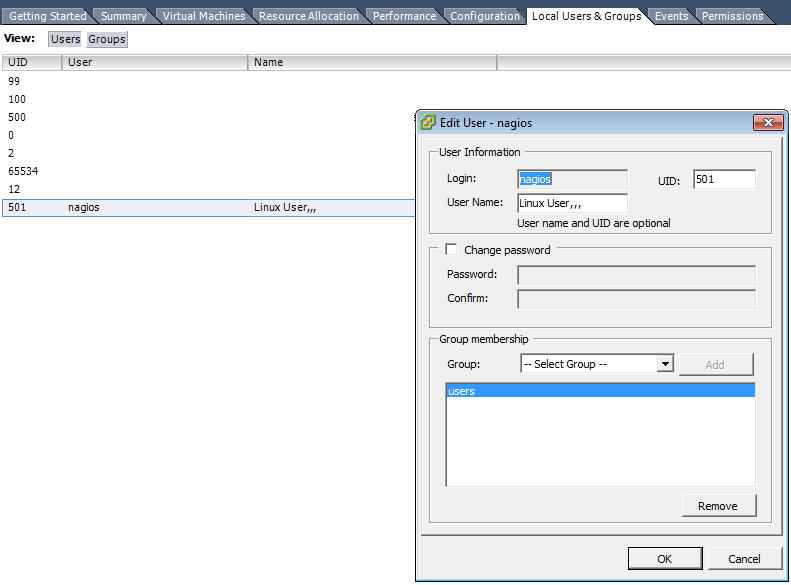
- Go to the Local Users & Groups Tab
- Add/Modify the nagios user and set the password
- Add the user to the users group and click ok
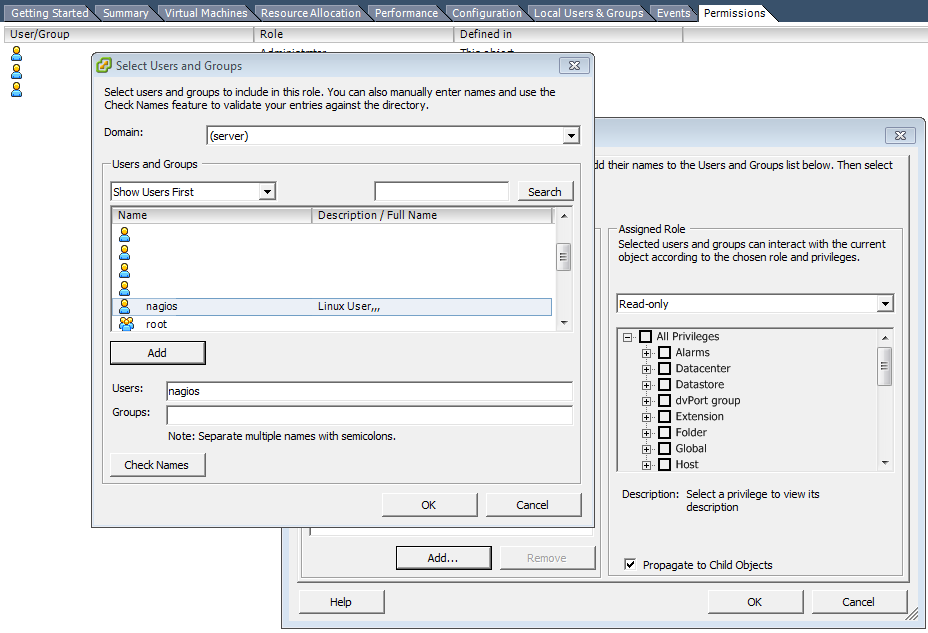
- On the Permissions tab and Add a new permission for the nagios user as Read-Only.
If you want you can run the commands to test access directly from the cli of the OpsView system.
root@opsview-appliance:/home/conf# ./check_esx -H x.x.x.x -u nagios -p xxxxx -l runtime -s health -w 0 -c 5
CHECK_ESX CRITICAL - Error: Permission to perform this operation was denied.
root@opsview-appliance:/home/conf# ./check_esx -H x.x.x.x -u nagios -p xxxxx -l runtime -s health -w 0 -c 5
CHECK_ESX OK - All 236 health checks are Green | Alerts=0;;Alerts are gone and we are good to move onto the next job…finally!