Quick Look: Veeam Agent for Linux 2.0 - Now With Cloud Connect
Just over a year ago Veeam Agent for Linux version 1.0 was released and for me still represents an important milestone for Veeam. During various presentations over the last twelve months I have talked about the fact that Linux backups haven’t really changed for twenty or so years and that the tried and trusted method for backing up Linux systems was solid…yet antiquated. For me, the GitLab backup disaster in Feburary highlighted this fact and the Veeam Agent for Linux takes Linux backups out of the legacy and into the now. Yesterday, Veeam Agent for Linux 2.0 (Build 2.0.0.400) was released and with it came a number of new features and enhancements improving on the v1.1 build released in May. Most important for me is the ability to now backup straight to a Cloud Connect Repository. Integration with Veeam Cloud Connect provides the following options:
- Back up directly to a cloud repository: Veeam Agent for Linux provides a fully integrated, fast and secure way to ship backup files directly to a Cloud Connect repository hosted by one of the many Veeam-powered service providers.
- Granular recovery from a cloud repository: Volume and file-level recovery can be performed directly from a backup stored within the cloud repository, without having to pull the entire backup on-premises first.
- Bare-metal recovery from a cloud repository: The updated Veeam Recovery Media allows you to connect to your service provider, select the required restore point from the cloud repository and restore your entire computer to the same or different hardware.
Configuration Overview:
To install, you need to download the relevant Linux Packages from (https://www.veeam.com/linux-backup-download.html). For my example below, I’m installing on an Ubuntu machine but we do support a number of popular Linux Distros as explained here.
# Download Package
:~#wget http://repository.veeam.com/backup/linux/agent/dpkg/debian/public/pool/veeam/v/veeam-release-deb/veeam-release-deb_1.0.1_amd64.deb

# Ingest Packages
:~#dpkg -i ./veeam-release* && apt-get update

# Install with APT
:~#apt-get install veeam
Once installed you want to apply a Server License to allow backing up to Cloud Connect Repositories.
# Install License:
~#veeamconfig license install --path agent.lic --server

License was installed successfully.
License information:
 License source: Local license
 Expiration date: 2018/12/18 (364 days left)
 Status: License is valid.
 Mode: Server
 Issued to: Anthony Spiteri
 Email: anthony.spiteri@veeam.com
Before configuring a new job through the Agent for Linux Menu you can add Cloud Providers via the agent CLI. There are a number of cli menu options as shown below.
:~# veeamconfig cloud
Veeam Agent for Linux
(c) Veeam Software AG

 Usage: veeamconfig cloud

Commands:
 add - Add Cloud Connect provider
 edit - Edit Cloud Connect provider
 resync - Resync (refresh) available repositories list
 delete - Delete Cloud Connect provider from database
 list - List all Cloud Connect providers
 help, --help, -h - Short help

#Add Cloud Provider
:~# veeamconfig cloud add --name 'SliemaLabs Perth' --address veeam.per.sliema.com.au --port 6180 --login LINUX-01 --password '*******'

#List Cloud Providers
:~# veeamconfig cloud list
Name ID Address Gate servers Username
SliemaLabs Perth {26a6c711-387e-4d49-8add-517abec968e0} veeam.per.sliema.com.au:6180 119.252.90.164:6180 LINUX-01
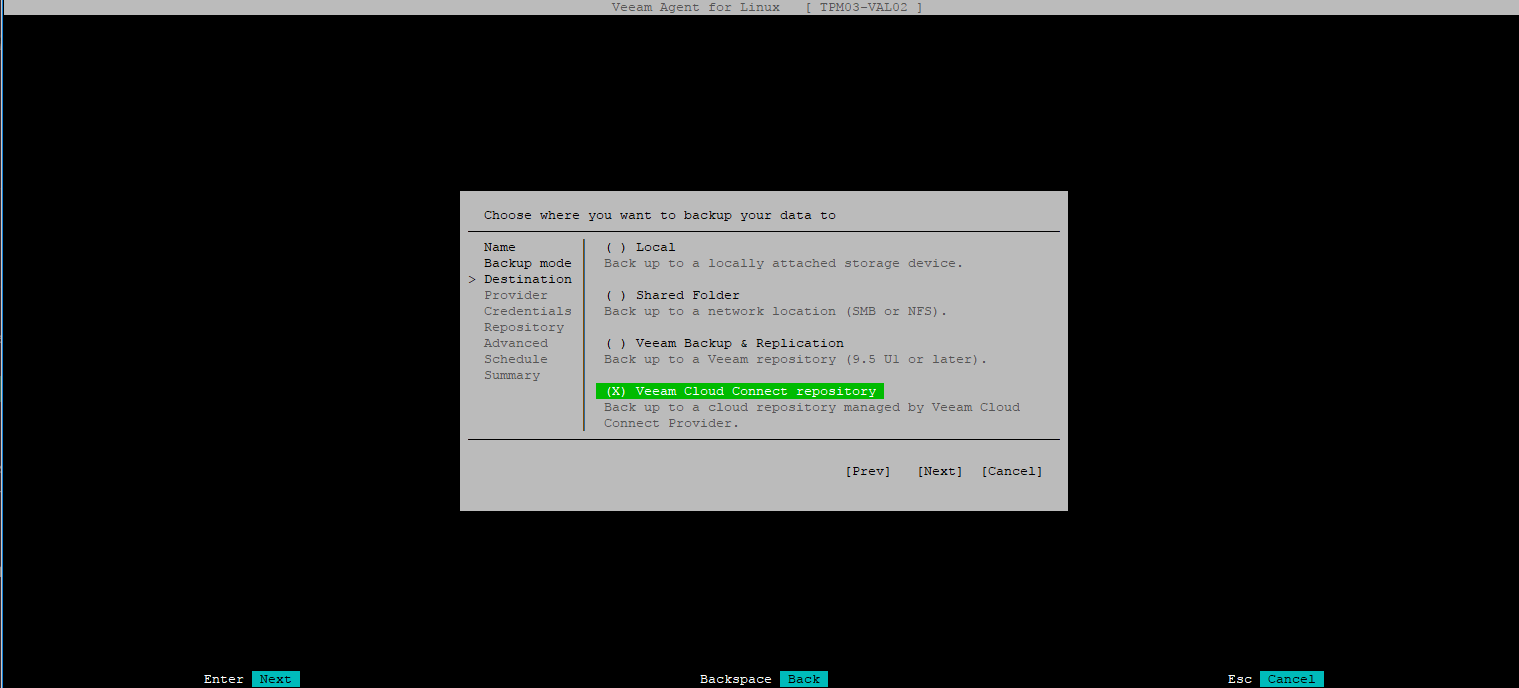
From here, you can use the cli to configure a new Backup Job but i’ve shown the process though the Agent UI. If you preconfigure the Service Provider with the cli once you select Veeam Cloud Connect Repository you don’t need to enter in the details again.
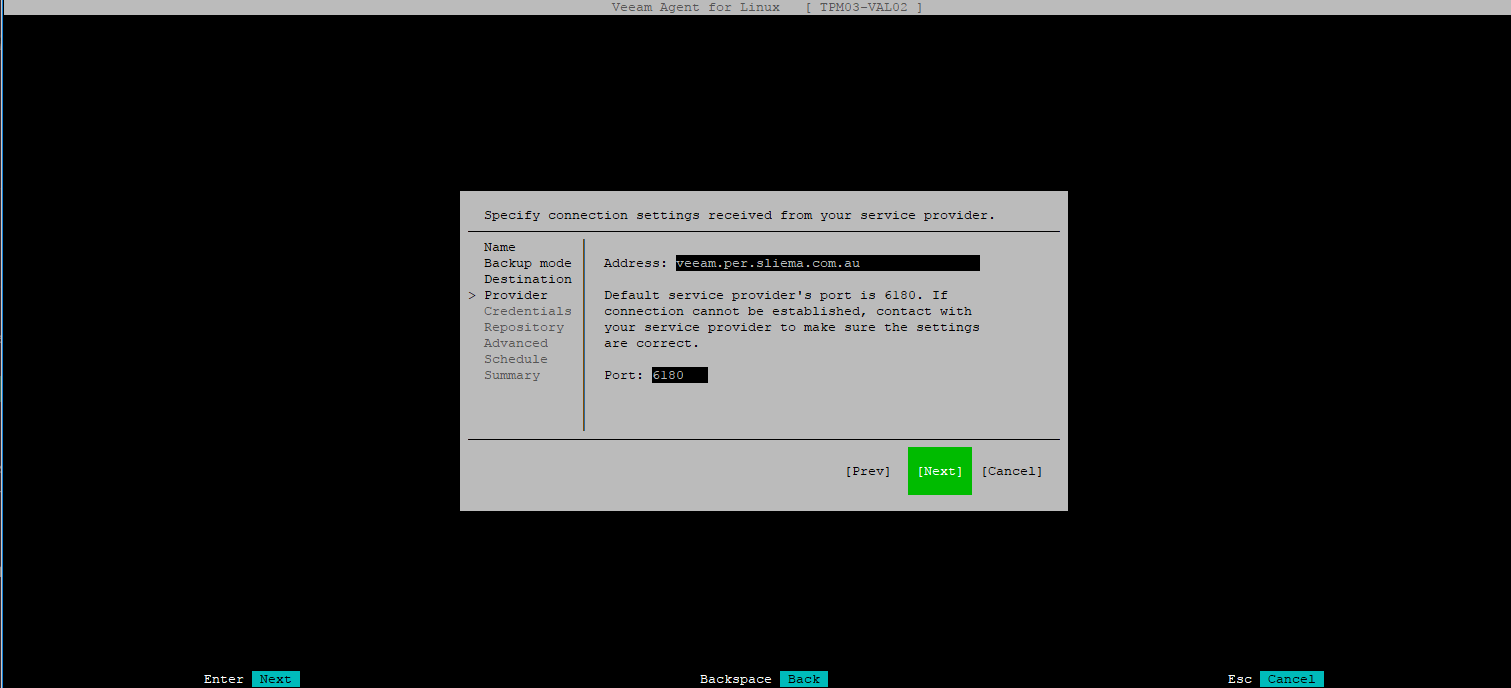
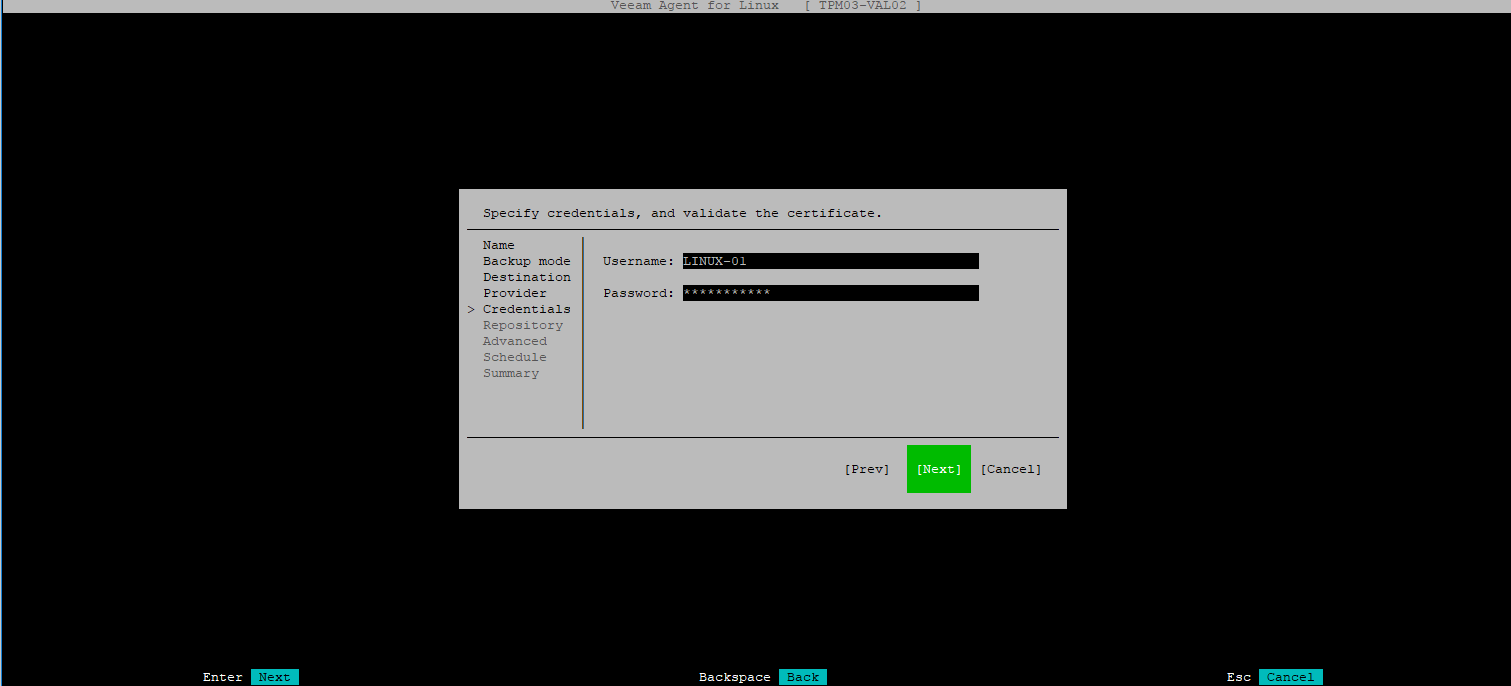
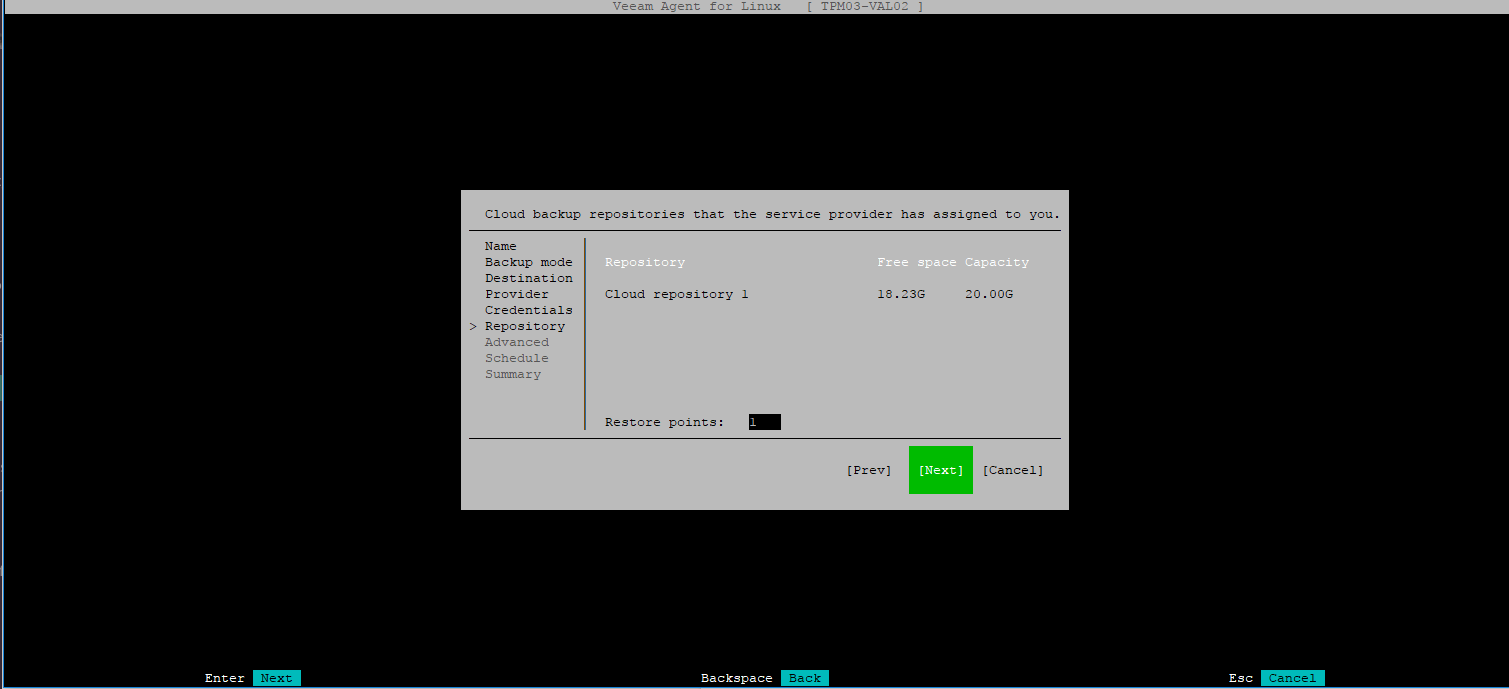 Once done and the job has run you will see that we have the backup going direct to the Cloud Connect Repository
From the cli you can also get a quick overview of the job status.
# Get Job List
:~# veeamconfig job list
Name ID Repository
Perth Sliema {c2dbc3ee-cae7-4ec2-8cc6-fc56547abc3f} [VEEAM.PER.SLIEMA.COM.AU][LINUX-01]Cloud repository 1

# Get Job Status
:~# veeamconfig job info --id c2dbc3ee-cae7-4ec2-8cc6-fc56547abc3f
Backup job:
 ID: {c2dbc3ee-cae7-4ec2-8cc6-fc56547abc3f}
 Name: Perth Sliema
 Repository ID: {e5fd6f7a-e730-4a59-b73d-6cf08d476e0b}
 Repository name: [VEEAM.PER.SLIEMA.COM.AU][LINUX-01]Cloud repository 1
 Creation time: 2017-12-18 20:56:55
 Options:
 Compression: Lz4
 Max points: 1
 Block size: 1024 KB
 File system indexing is disabled
 Objects for backup:
 Include All System:
 Schedule:
 Every day
 At: 06:00
Wrap Up:
I’ve been waiting for this feature for a long time and with the amount of Linux server instances (both physical and virtual) that exist today across on-premises, partner hosts IaaS platforms, or hyper-scale clouds, I hope that Veeam Cloud & Service Providers really hone in on the opportunity that exists with this new feature. For more on What’s New in 2.0 of Veeam Agent for Linux you click (https://www.veeam.com/veeam_agent_linux_2_0_whats_new_wn.pdf). References: https://www.veeam.com/veeam_agent_linux_2_0_whats_new_wn.pdf