vCloud Reporting: Org and OrgvDC VM Report (PowerCLI)
I had been looking for a way to get quick reports from our vCloud Zones using PowerCLI that reports on VM Allocated Usage. Basically I wanted to get a list of VMs/vAPPs and return values for allocated vCPU, vRAM and Storage. I cam across (http://geekafterfive.com/2013/03/21/simple-vm-reporting-in-vcloud-with-powercli/) blog from Geek After Five @jakerobinson which uses the PowerCLI CI command Get-CIVM, which typically can be used to report on name, vCPU and vRAM count…but not storage. I’ve slightly extended the script to list vCloud Orgs and created another script that can list vCloud vDCs and then return values for all VMs contained the contained vAPPs. The smarts of the script is all Jakes, so thankyou for creating and sharing. #community Get-vORG-VM-Detail
# Get a list of vCloud Orgs
$ListOrg = Get-Org | Sort-Object -Property Name
# Write the list and prompt for input
write-host "$ListOrg"
write-host ""
$Org = read-host "Please Enter the Name of the Org"
$vms = Get-Org -Name $Org | get-civm
$objects = @()

# Jakes Smarts
foreach($vm in $vms)
{
 $hardware = $vm.ExtensionData.GetVirtualHardwareSection()
 $diskMB = (($hardware.Item | where {$_.resourcetype.value -eq "17"}) | %{$_.hostresource[0].anyattr[0]."#text"} | Measure-Object -Sum).sum
 $row = New-Object PSObject -Property @{"vapp" = $vm.vapp; "name"=$vm.Name;"cpuCount"=$vm.CpuCount;"memoryGB"=$vm.MemoryGB;"storageGB"=($diskMB/1024)}
 $objects += $row
}

# Use select object to get the column order right. Sort by vApp. Force table formatting and auto-width.
$objects | select-Object name,vapp,cpuCount,memoryGB,storageGB | Sort-Object -Property vapp | Format-Table -AutoSize

# Also Export results to CVS for further processing
$objects | Export-Csv "$Org.csv" -NoTypeInformation -UseCulture
Get-vCD-VM-Detail
# Get a list of vCloud Orgs vDCs
$ListOrgVDC = Get-OrgVdc | Sort-Object -Property Name

# Write the list and prompt for input
write-host ""
write-host "$ListOrgVDC"
$OrgVDC = read-host "Please Enter the Name of the OrgVDC"
$vms = Get-OrgVdc -Name $OrgVDC | get-civm
$objects = @()

# Jakes Smarts
foreach($vm in $vms)
{
 $hardware = $vm.ExtensionData.GetVirtualHardwareSection()
 $diskMB = (($hardware.Item | where {$_.resourcetype.value -eq "17"}) | %{$_.hostresource[0].anyattr[0]."#text"} | Measure-Object -Sum).sum
 $row = New-Object PSObject -Property @{"vapp" = $vm.vapp; "name"=$vm.Name;"cpuCount"=$vm.CpuCount;"memoryGB"=$vm.MemoryGB;"storageGB"=($diskMB/1024)}
 $objects += $row
}

# Use select object to get the column order right. Sort by vApp. Force table formatting and auto-width.
$objects | select-Object name,vapp,cpuCount,memoryGB,storageGB | Sort-Object -Property vapp | Format-Table -AutoSize

# Also Export results to CVS for further processing
$objects | Export-Csv "$OrgVDC.csv" -NoTypeInformation -UseCulture
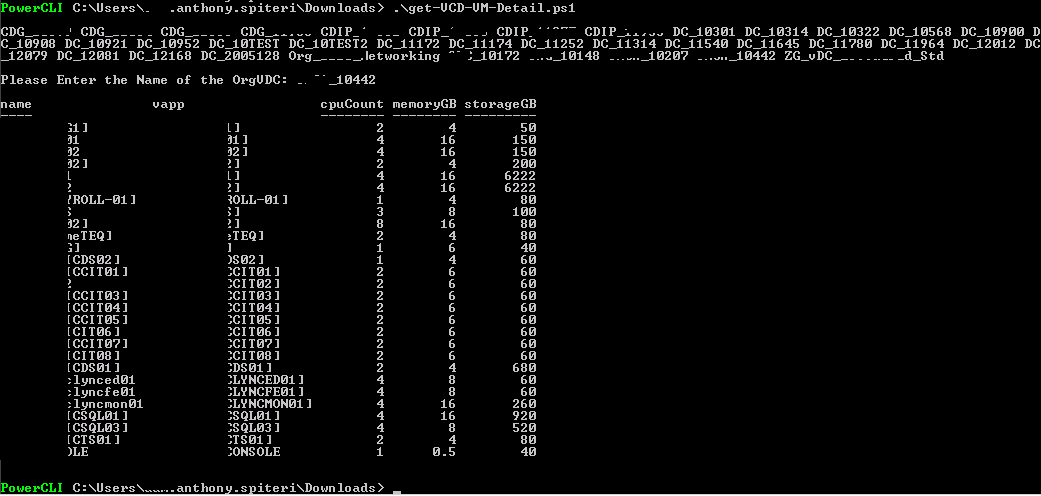
Example Output Below:
!(/images/2013/09/powercli_output1.png)
I would have liked to format the List a little better, but was running into a double format-table issue in the array, so for the moment it’s a fairly messy list, but none the less helpful. Next step is to add an email function to get the CSV info delivered for further use. // //
3 Commentsarchived